Available Release Actions
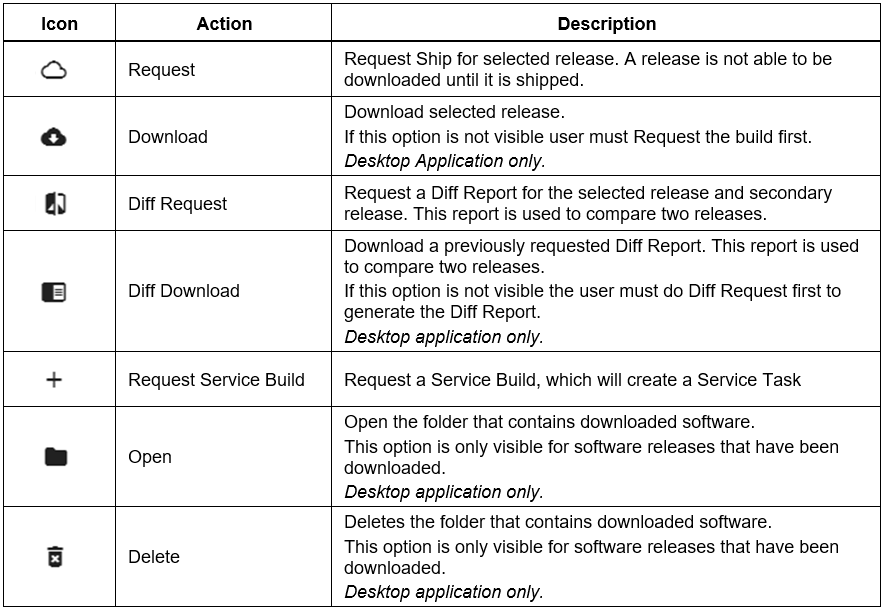
After a user has identified the release they would like to use, there are several actions they can take. The following table describes each available release action. 
Request
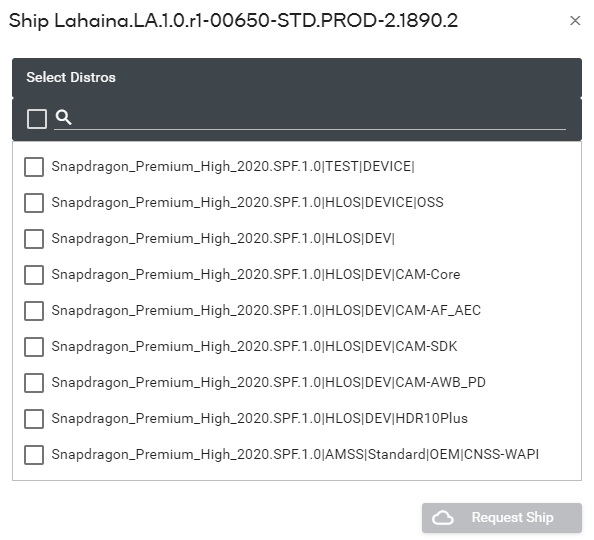
Before a build can be downloaded the user must complete a Ship Request for a particular Distro:
- Click
 and select the appropriate Distro(s).
 - Click Request Ship.
Download
NOTE: This option is only visible in the Desktop Application.
To download software:
- Click
 . If this button is not visible, a Ship Request has not been completed.
 - Select the Distro(s) to download for this release, then click Download. The list of available Distros depends on the completed Ship Requests for this release.
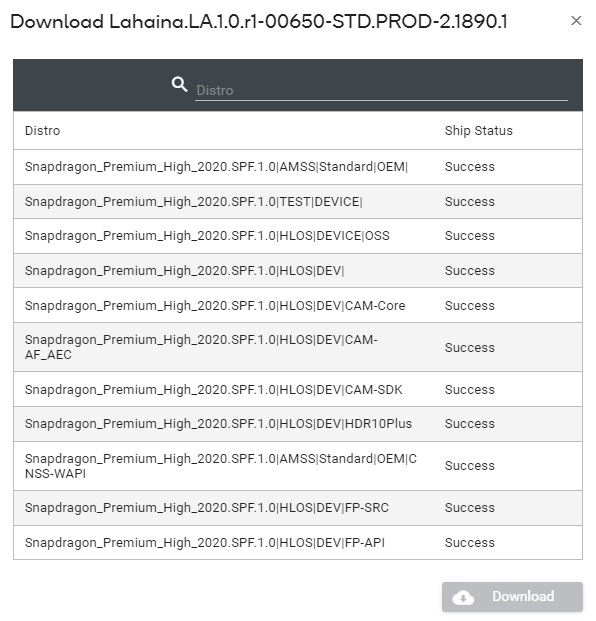
- View download history from the Download page.
Diff Request
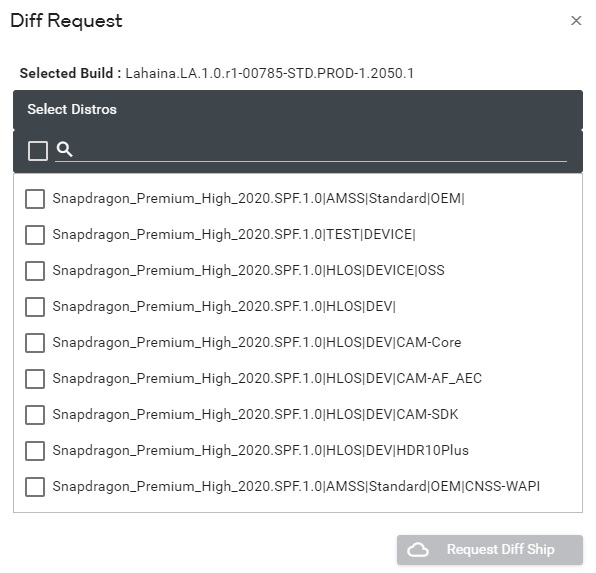
A Diff Report describes the differences between two builds. To request a Diff Report:
- Starting with the Selected Build, click
 .
. - Select the secondary build to compare to, then click Select Distro.
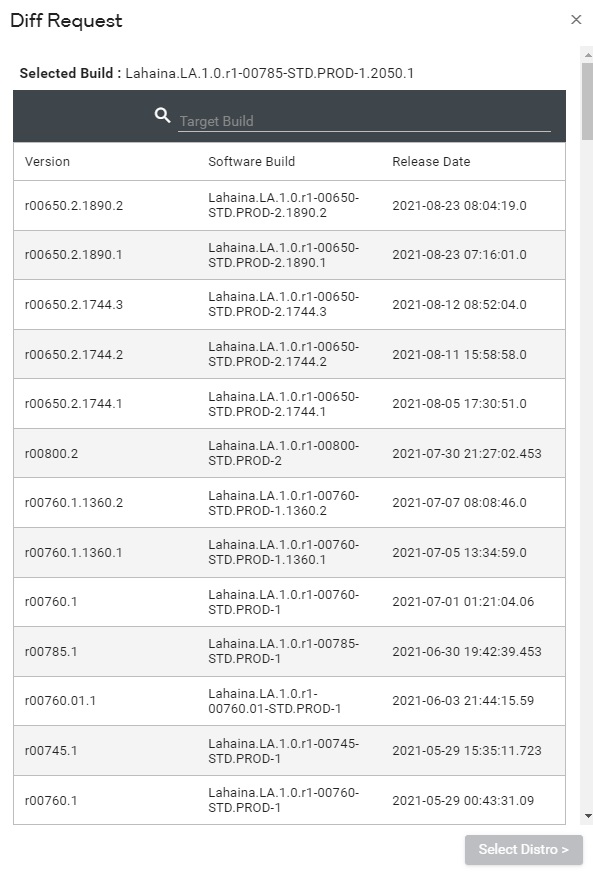
- Select Distro(s), then click Request Diff Ship.
Diff Download
NOTE: This option is only visible in the Desktop Application.
After a Diff Request has been completed, the user can download any completed Diff Report:
- Click
 .
. - Select the Diff Report and click Diff Download.
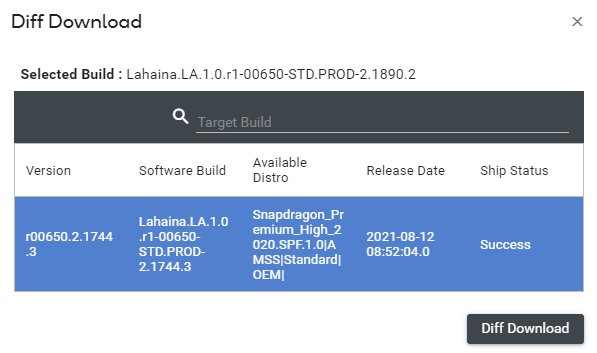
If status is not “Success”, click  to retry.
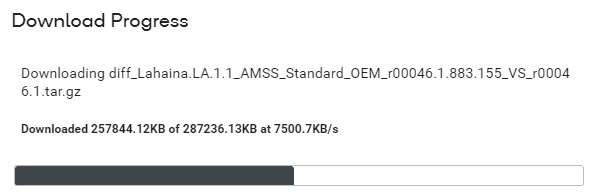
While the Diff Report downloads, progress details are visible in the upper right corner.
to retry.
While the Diff Report downloads, progress details are visible in the upper right corner.
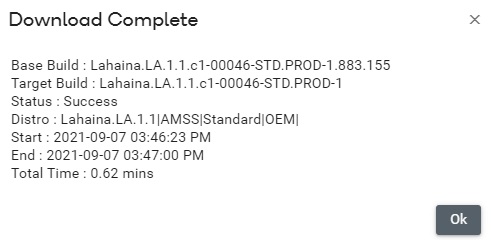
When download is finished it will show details.
Request Service Build
To create a Service Release, the user must request a Service Build:
- Click
 .
. - Configure the Software Request. See the Create Software Requests section for more details on creating a new software request.
Open
NOTE: This option is only visible in the Desktop Application.
For releases that have been downloaded to the local system, click  to open the folder where the release was downloaded.
Delete
NOTE: This option is only visible in the Desktop Application.
For releases that have been downloaded to the local system, click  to delete the downloaded release.