Create a Software Request
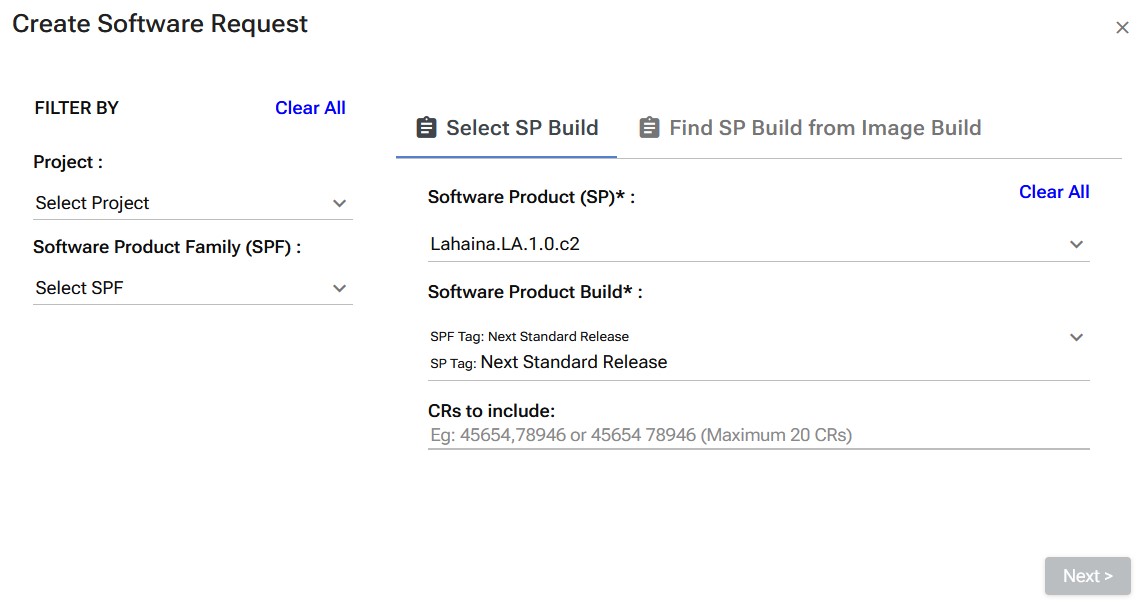
Creating a Standard Release Request
- Optional Filtering: Select Project and select SPF are optional fields which can be selected for filtering.
- Required Fields: Select SP and Select "Next Release" in SP Build.
- Add a comma separated list of CRs in the release. Note: At least one CR is required and at max 20 CRs can be added.
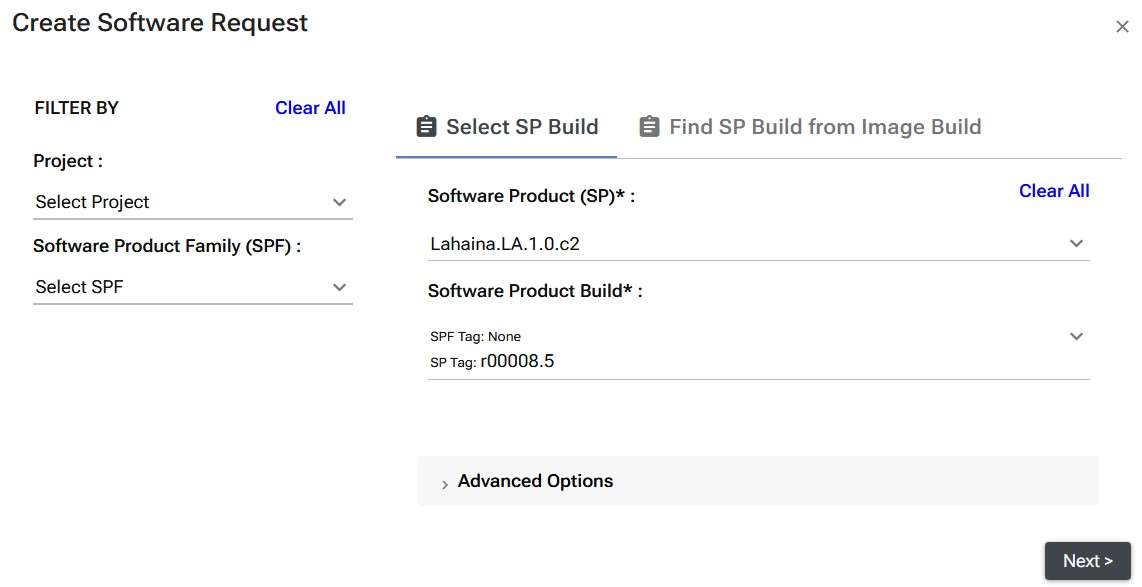
Creating a Service Request
- Optional Filtering: Select Project and select SPF are optional fields which can be selected for filtering.
- Required Fields: Select SP and Select SP Build.
- Add Advanced Options as required (more information on that below).
Creating a Software Request with Advanced Options
A software request can be created with some Advanced Options optional
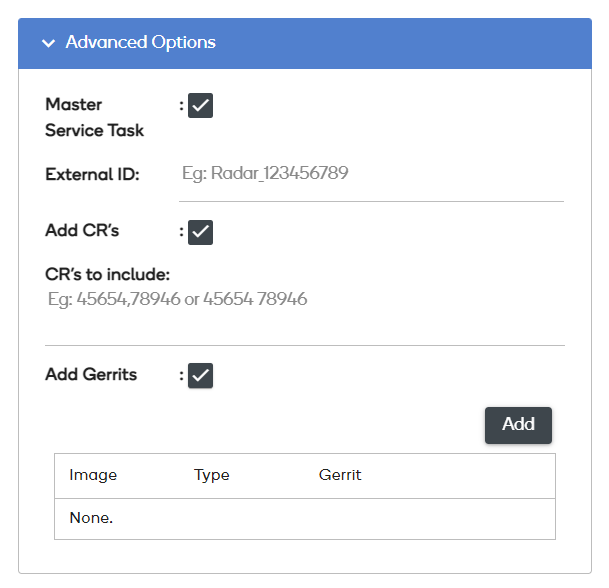
Creating a Software Request with CR(s) and/or Gerrit(s)
-
To request a software request, in Request New Build:
- Select a SPF from the dropdown optional
- Select a SP from the dropdown
- Select a SP Build from the dropdown
- Search by SPF Tag or Software Product Tag
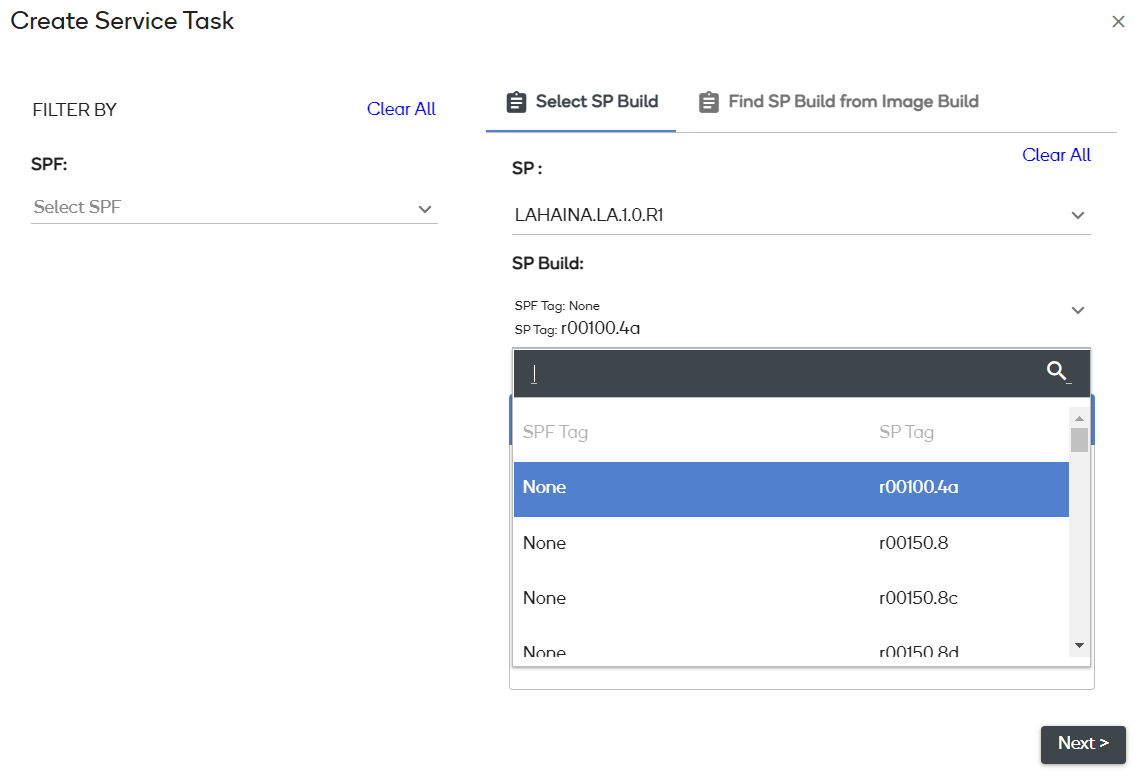
- Search by SPF Tag or Software Product Tag
- Add CR(s) to include optional
- If you select the Add Gerrit checkbox:
- Select a Image and Type from the dropdowns. The Build ID will be automatically populated.
- Enter ID into the Gerrits field
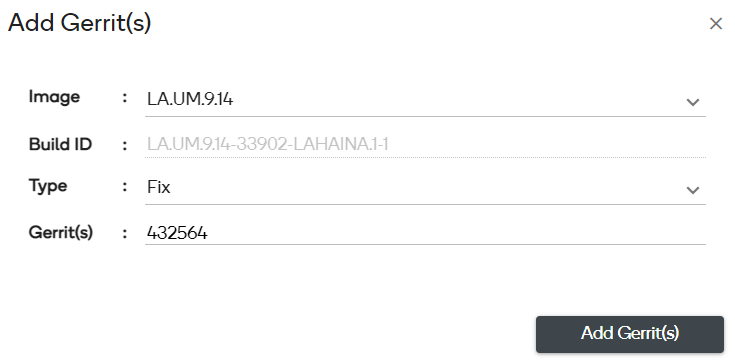
- Then press Add Gerrit(s)
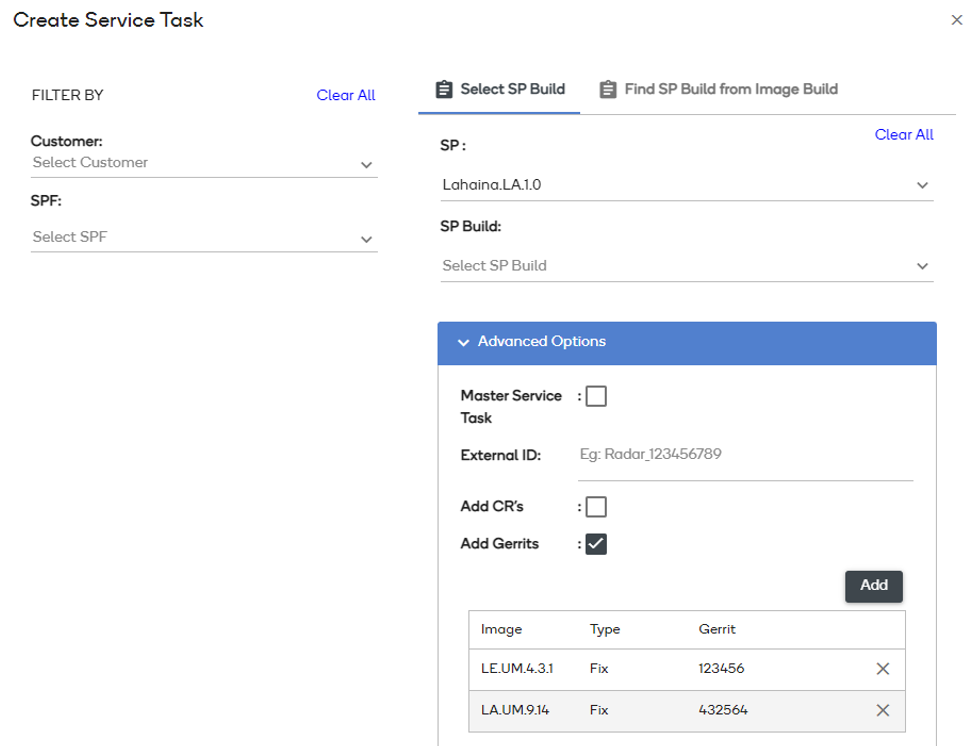
- Once a CR and/or Gerrit has been added to the request the Next button is enabled.
-
From the Triage page, the user can chose Add CR(s) or Add Gerrit(s) to add additional CRs or Gerrits that were not added in the original request.
-
Software images are automatically added to the software request based on CRs and Gerrits that are added.
-
Once triggered, build details are available on the Software Request Build page.