Tools Installation
From the Tools List Page the user can select any tool to open the Tool Detail Page for that tool.
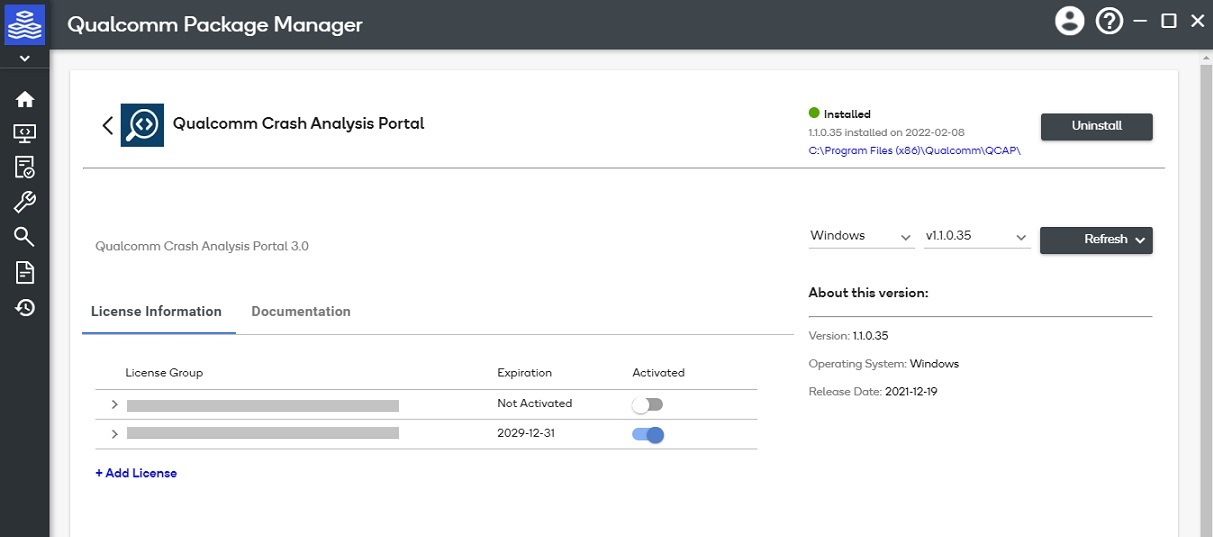
Tool Detail Page
All information about this tool will be listed including:
- Tool Description
- Available Versions with details for the version selected in the dropdown
- Installed Version with installation details (only on Desktop Application if this tool is installed)
- Local Licenses with license details for the selected tool (only on Desktop Application)
Installing a Tool (using the Web Portal)
- Select the version you want to install and press the Install or Extract button
- If this selected tool is Freemium or Extract type package you will see the installer download in your browser window. Double click on the installer to run the installer.
- If the selected tool requires a license to be activated before you can download and install the tool, the Deep Link Feature will transition you from the Web Portal to the Desktop app.
Deep Link Feature
- From the Web Portal the user will select a Tool and Version to install.
- When the user presses the Install button it will either Launch QPM3 (if already installed) or Install and Launch QPM3.
- If QPM3 is already installed, the Web Portal will attempt to launch it.
- User may see a warning the first time they attempt to launch asking for permission.
- If QPM3 is not already installed, the Web Portal will download the QPM3 installer. User will need to launch the installer from the download location and follow the installation steps and login.
- Once the Desktop Application launches it will:
- Automatically open the correct Tool Details Page based on the version that was selected from the portal
- Automatically trigger the download of the version that was selected from the portal
- NOTE: Site license will automatically be activated but Purchase or Demo licenses must be activated prior to installation.
Installing a Tool (using the Desktop Application)
- Select the version you want to install and press the Install button
- If the user has a SITE license for this tool it will automatically be activated
- If the user only has a Purchase or Demo license they must click + Add License to activate their license.