Multiple Product Installations
The Multiple Product Installation feature helps users to install multiple products in a single step. User can switch to Multi Install Mode to select multiple products, and select products from suites and sub-suites that are available based on their entitlements.
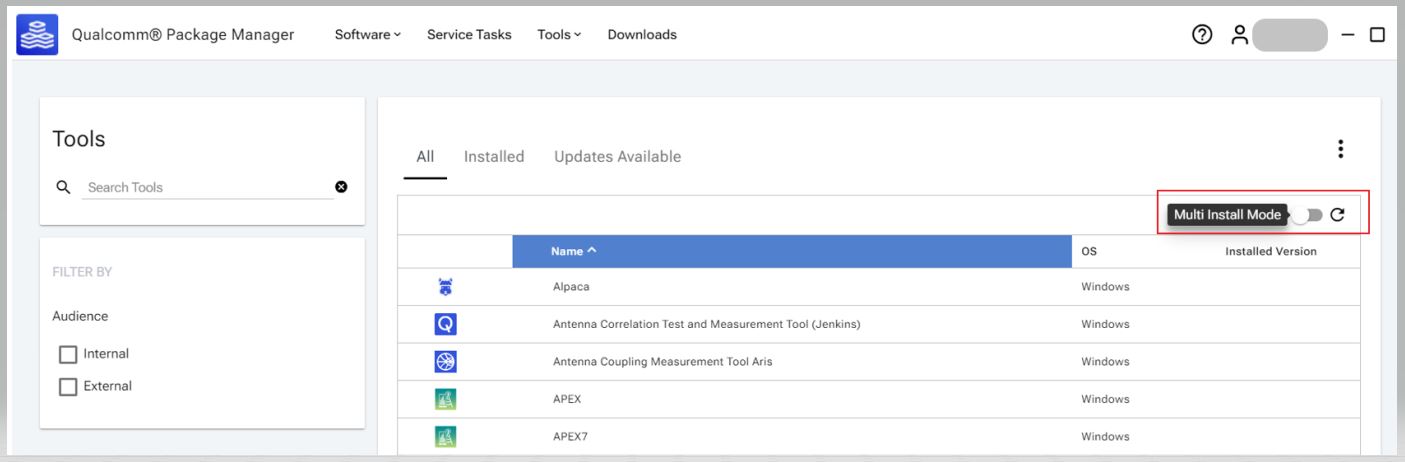
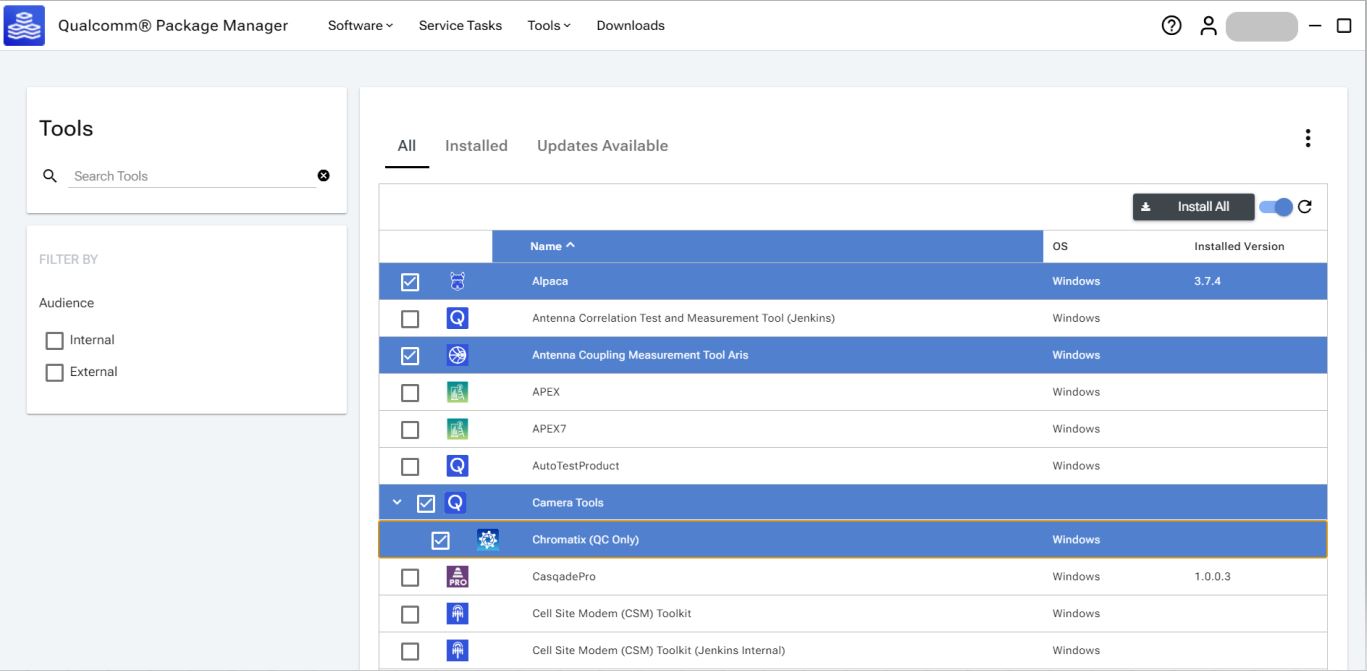
On Clicking the Install All button will open a preview window that displays information about the products that have been added.
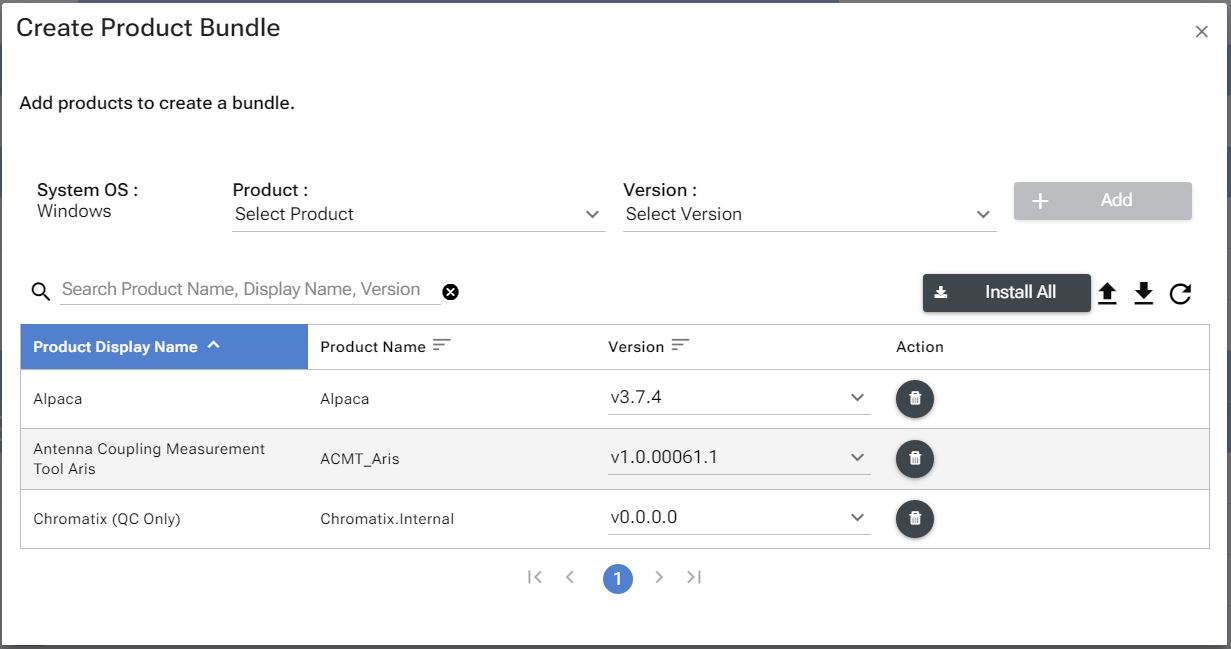
User has the ability to Import and Export the JSON file of the product bundle. Users can also update the product version and remove it.
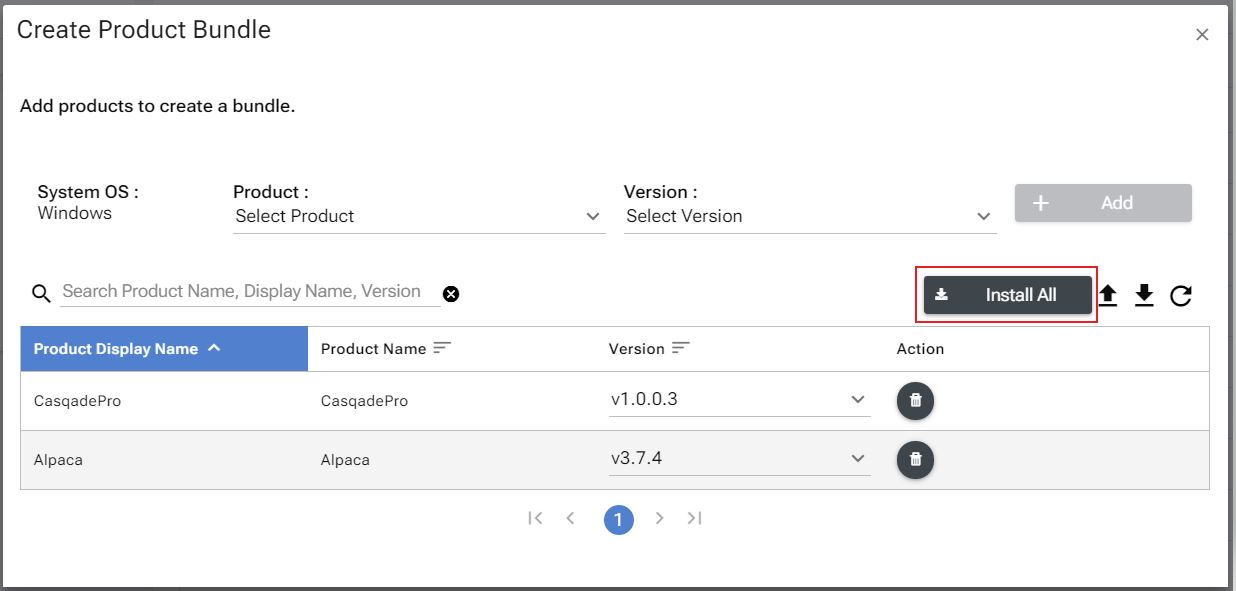
Launch Qualcomm® Package Installer (QPI) and Initiate Multiple Installation:
To begin the process of installing multiple products, the user must accept the license agreement. After clicking Install All , a dialog box with the license agreement will appear.
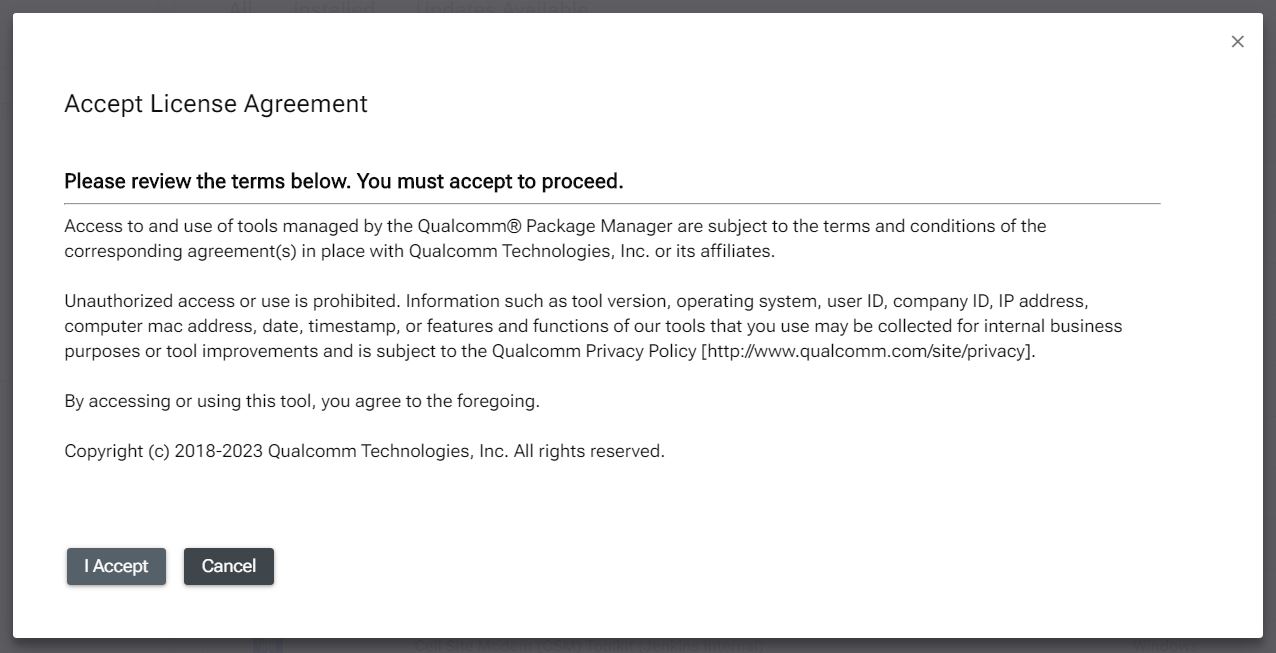
Qualcomm® Package Installer (QPI) will be launched after accepting the license agreement, which is already bundled and installed with Qualcomm® Package Manager (QPM).
Qualcomm® Package Installer (QPI) :
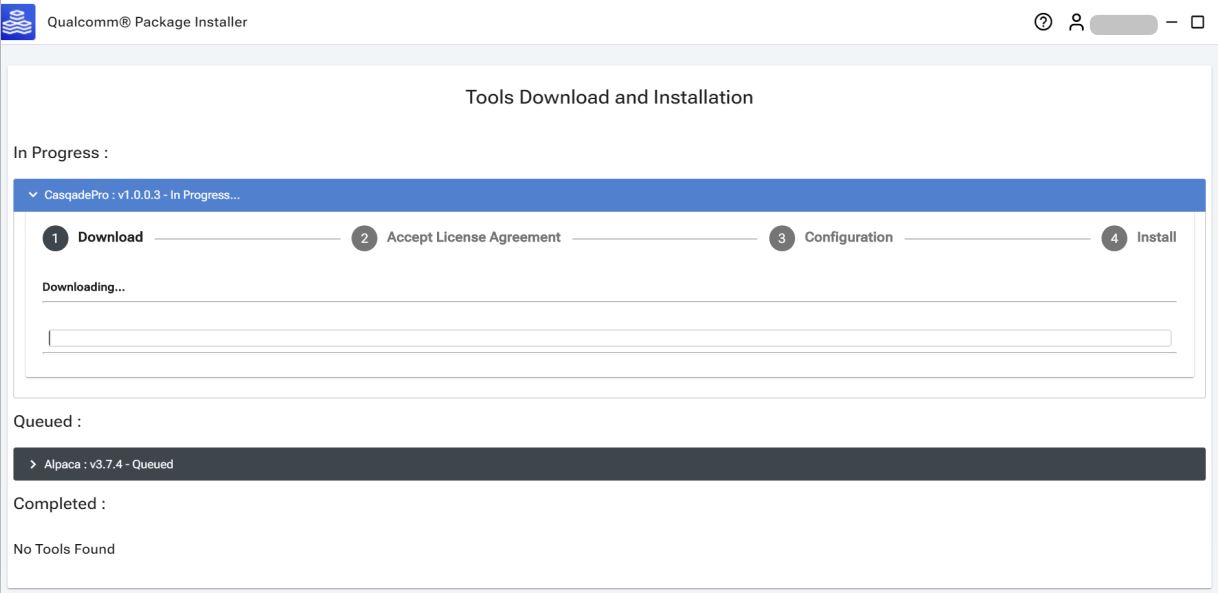
Qualcomm® Package Installer (QPI) has three segments
- In Progress Tool Segment
- Queued Tool Segment
- Completed Tool Segment
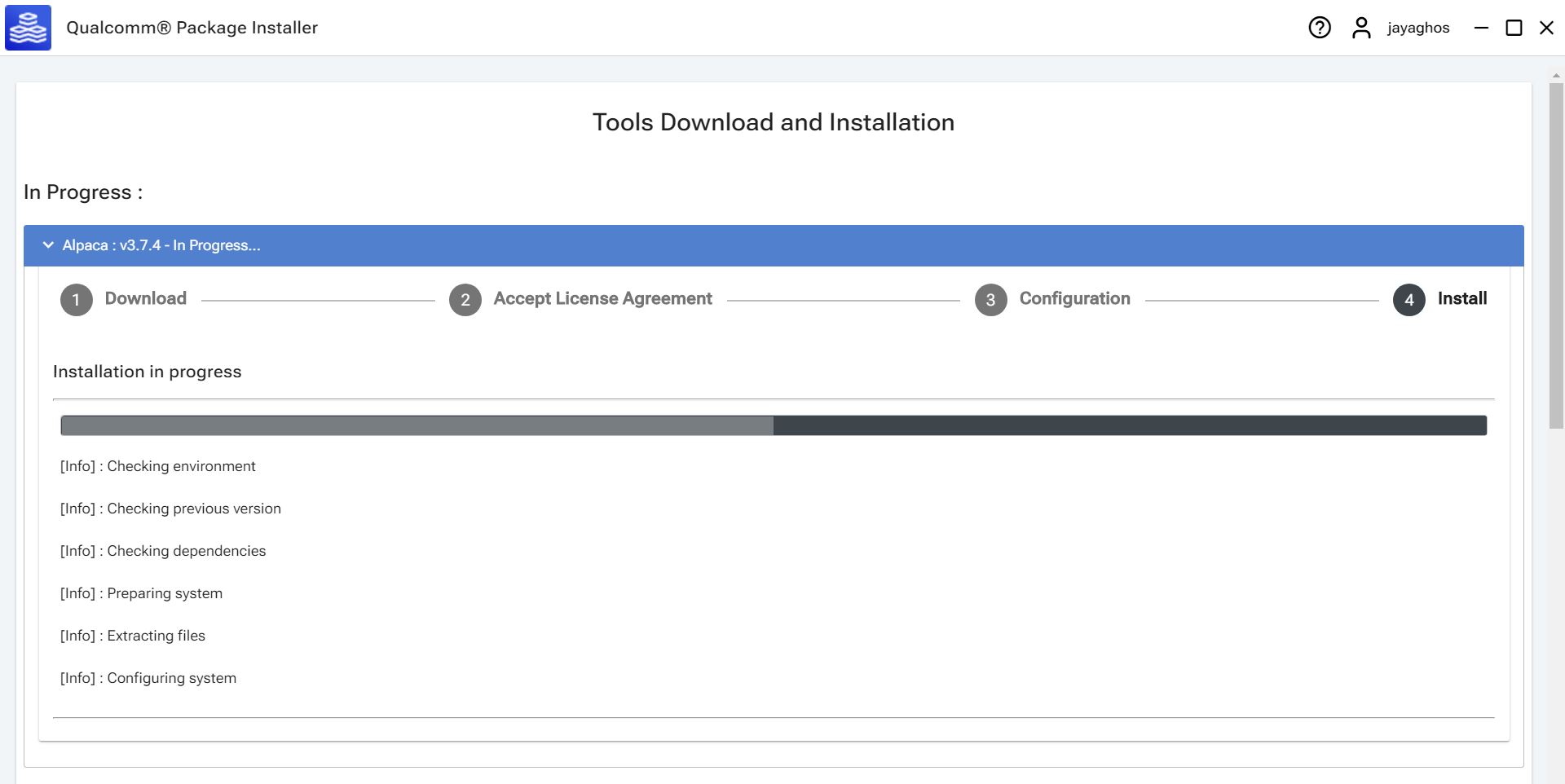
In Progress Tool:
This segment allows the user to monitor the download and installation progress of the product.
Queued Tool :
The products that are currently in queue for installation will be showcased in this segment.

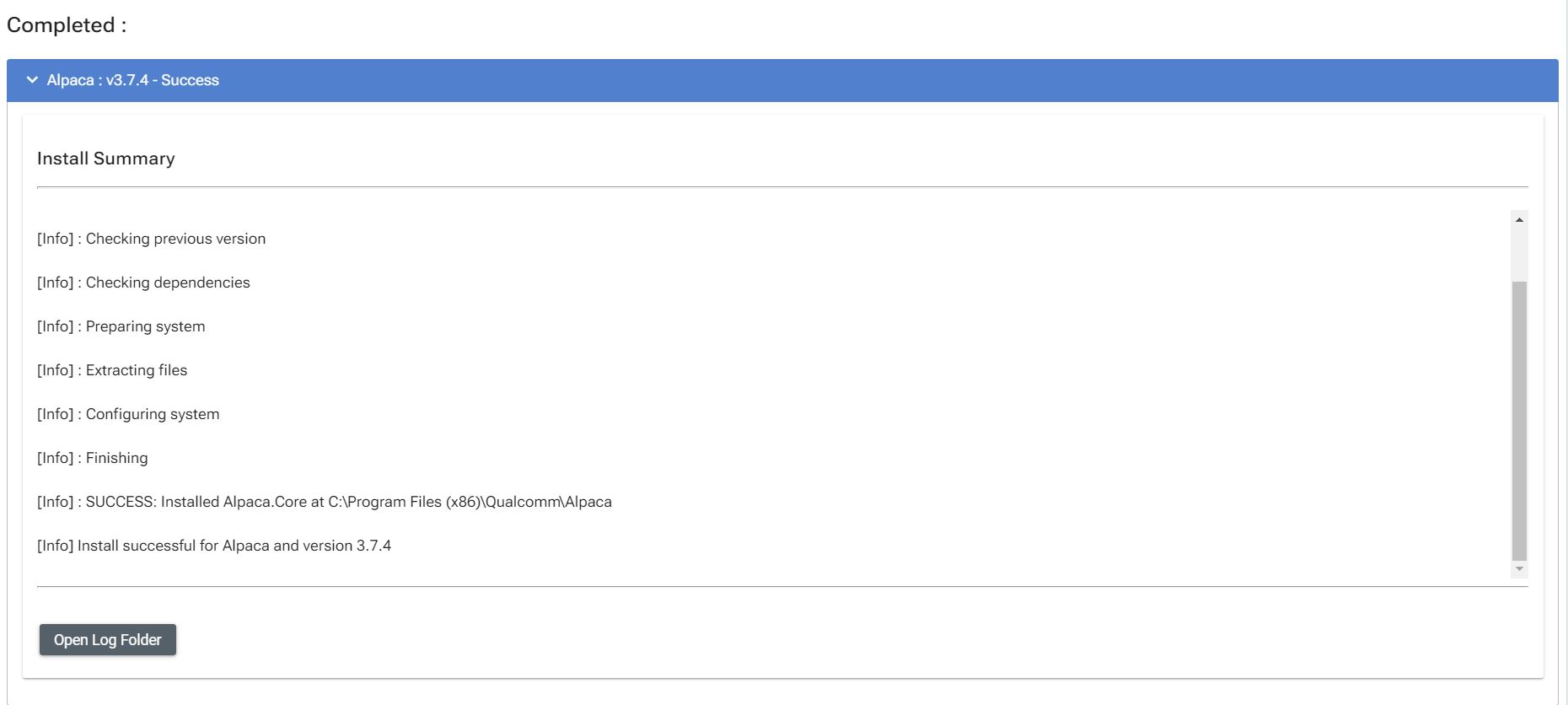
Completed Tool :
After the products have been installed, users can see details in this segment.

Install Product Bundle
Introduction
To install a product bundle, follow these steps:
Step 1: Browse Product Bundle File
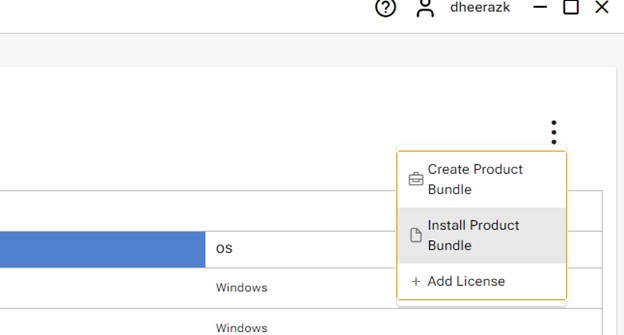
Go to the Tools page and click on the three dots in the top right corner.
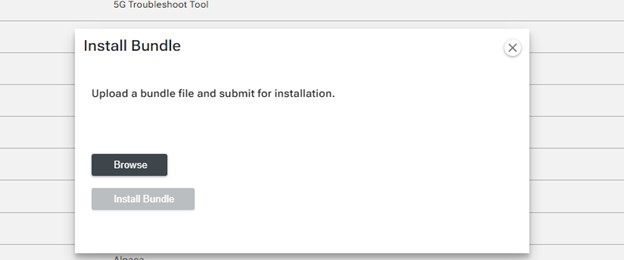
Click on the browse button and select the correct JSON file.
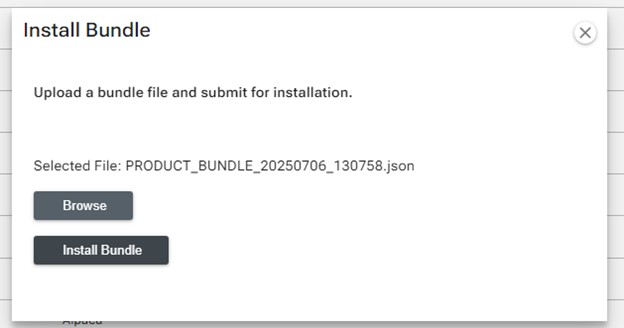
Click on the Install Bundle button.
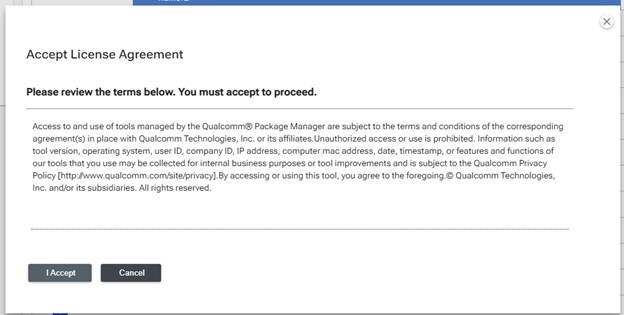
Step 2: EULA for Product Bundle
Installation via this method will display only one End-User License Agreement (EULA), which will be presented on the user interface at the beginning of the process.
Step 3: Different States
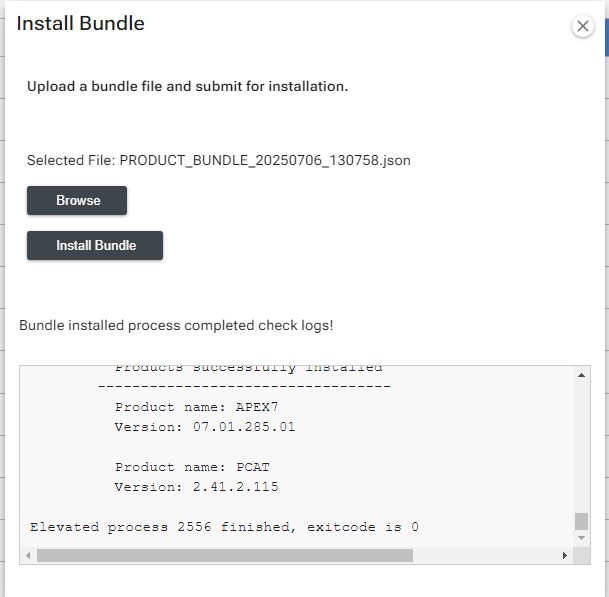
The installation process will go through different states, including:
- Started: The installation will be initiated.
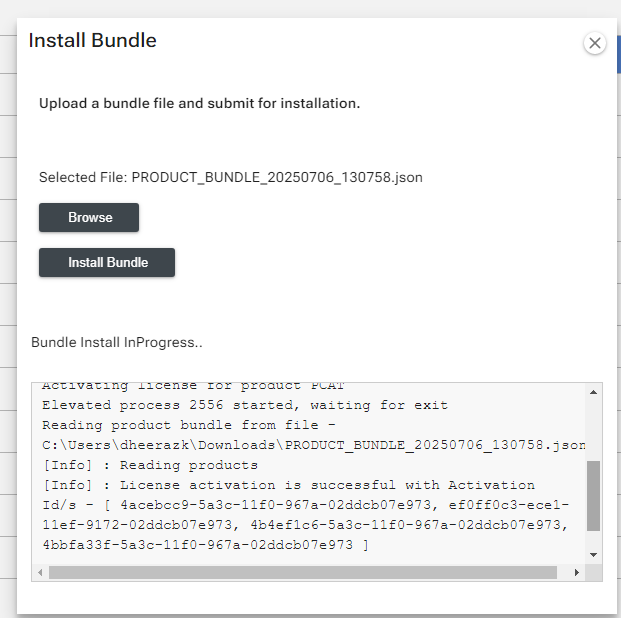
- In Progress: The product will be downloaded and installed.
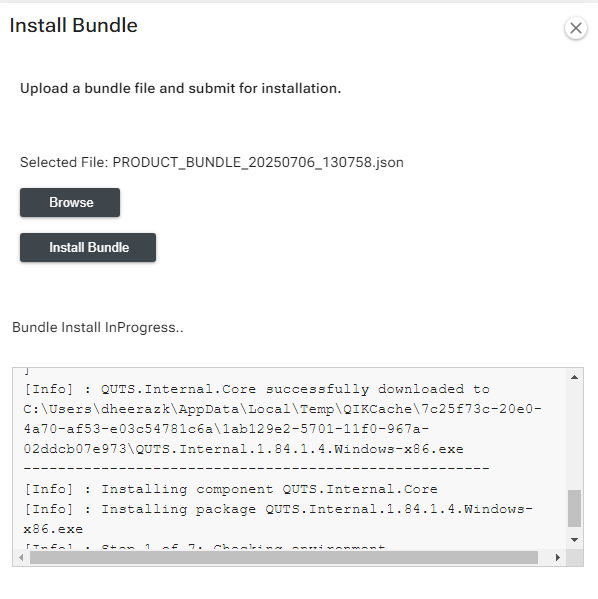
- Completed: The installation will be completed.
Important Note
- The installation process will continue even if the dialog or application is closed. To stop the installation, you must terminate the qikv3 process manually. Be aware of this behavior, as it may affect system performance if not properly managed.
- qikv3 will not send any exit code if failures occur; the only way to determine this is by checking the logs or the end summary.
CLI Installation
You can also install product bundles via the command line interface (CLI) using the following command:
qpm-cli --install-bundle <bundlepath>
This will install the product bundle located at the specified path.